HOME | DD
 MostlyWood — Portrait

#portrait #wallpaper #contestentry #wallpaper1920x1080
Published: 2021-02-02 21:08:02 +0000 UTC; Views: 734; Favourites: 17; Downloads: 21
Redirect to original
Description
Created for Contest: The Student Becomes the MasterHello all,I've been trying to think of different types of contests that wouldn't be too difficult, since I know we're all exhausted from surviving 2020. This will be the first type of contest/challenge we've done in a while, considering how much things have changed since the site update, so hopefully it works out well. Of course, we're always open to your feedback and suggestions!,The PromptThe prompt is simple: use one (or more) of the tutorials that have been posted through @projecteducate to create artwork that you'll submit as an entry to this contest. While at first this may seem only relevant to beginners in any art medium, we do also have tutorials for more advanced artists. Furthermore, you can try your hand at a different art medium, or a different style of art you might not be familiar with. Some tutorials go beyond just telling you something basic like "how to draw a horse" and instead discuss matters of style. Also, some tutorials don't have to do with the artwork itself, but how you get to creating the artwork: art block, inspiration, finding ideas, experimenting, etc.As such, everyone should be able to find a way to enter this contest in a way that makes sense for them and their specific level of artistic expertise.The goal here is to try something new, experiment, learn something new, switch things up, and provide a somewhat different type of contest than what you might be used to.The Tutorials/GuidesWhile you're entirely allowed to scour the journal page of @projecteducate or our gallery folders to find the tutorial/guide you want to use, I thought I'd make it easier on you by linking various articles right here. These are just SOME of the many tutorials you can find in the group to use for this contest. If none of these sound good to you, take a look through the group's galleries and journal pages! Digital ArtHands and how to handle them by @Kiki-Tayler Fur and Hair: Types and How To by @ArtCrumbss Anatomy of the human face by @efelidi Intro to Photobashing by @Gaidenlight Basic 2D animation concepts by @PowerOfSin Painting Fabrics Part 1, Part 2 by @efelidi A Guide to Drawing Owls by @wildly-arts How to Draw Cartoon Animals by @ARVEN92 The realistic cloud painting by @aerroscape Lineart tips for digital artists by @longestdistance Traditional ArtAutumn watercolor tutorial (easy sponge technique) by @jane-beata Mixing Soft Pastels and Oils by @efelidi Traditional collage tutorial by @chidori-art Watercolor effects by @jane-beataGraphite Realism Portraits: Beard Tutorial by @TricepTerry 7 step watercolor bird tutorial by @Erdbeerstern Painting an Iris with Watercolor and Masking Fluid by @ebjeebies Manga & AnimeMaking Effective Character Designs by @bitter--coffee How to Background: A Guide by @Kirwet99 Inking Tutorial by @fireytika Fan ArtComing Up with Fan Art Crossovers by @Lushies-Art Stained Glass Style Tutorial - The Legend Of Zelda by @Ranefea Drawing fan art with you own personal spin by @TinyFlyThing Artisan CraftsSo you wanna bake a cake? by @cakecrumbs The Beginner's Guide to Pepakura by @SinistrosePhosphate Infinite variety of origami lilies by @OrigamiAround Yes, you can knit! Here's how by @Lionnfart How to make basic cross-stitch patterns by @pinkythepink Photoshooting your craft by @Keila-the-fawncat Pyrography: An Intro to the Art of Burning Things! by @squanpie How to make a novelty cake by @StargazeAndSundance A look into the world of polymer clay by @SayTunaFeesh Other/MiscellaneousTips on how to photograph your dog by @corniger-aries #MerMay Tail Tutorial by @HeatherHitchman How to draw a mermaid by @DreamPigment Making a MerMan by @Shesvii How to Get Better at Street Photography by @burningmonk Soft coloring tutorial for Paint Tool SAI by @longestdistance Non-destructive Editing in Photoshop by @kuschelirmel 3D Apophysis Flowers: Workflow by @C-91 Characters and Plot: How Your OC Fits in the Plot by @Pepper-the-phoenix Designing Adoptables - A tutorial by @Squishibear The RulesThe artwork you submit must be NEW, created specifically for this contestYou may submit as many entries to this contest as you'd likeTo submit your entry/entries, link it/them in a comment on this journalThe description of your deviation MUST include a link to the tutorial/guide from @projecteducate that you used, and it must make sense with your artwork*You can only use a tutorial/guide from @projecteducate, please visit our journal page or galleries to find a tutorial you want, if none of the ones listed above interest you.You may not use one of your own tutorials (if you've written it for @projecteducate), for obvious reasons *If you want to, or think it might be necessary, you can explain in your deviation's description or in your submission comment, how you used the tutorial/how the tutorial helped you create your entry.The PrizesIn an effort to try and keep the prizing as fair and motivational as possible, I'm breaking it up into categories.Each category will only have 1 winner and one person cannot win multiple categories. Judging will take into account the artistic qualities of your entry each time, not only how your entry/entries fit within these prizing categories. We do want everyone to put their best effort into this!The best in class prize, for someone who created exceptionally good artwork: 2,000 The overachiever prize, for someone who submitted multiple entries: 1,500 The renaissance man prize, for someone who created art in a different medium than what they usually use or in a different style: 2,500 + 1 month core membershipThe master student prize, for someone who used multiple tutorials/guides from @projecteducate for their entry (only 1 entry): 1 month core membershipThe back to basics prize, for someone who used a beginner-oriented tutorial: 500 + 1 month core membershipThe advanced placement prize, for someone who used a tutorial on a niche or unusual topic: 1,000 The random student prize, for a random participant who followed all the rules: 500 The DeadlineYou have until February 20th at 11:00 PM Pacific Time (Los Angeles) to leave a comment on this journal submitting your entry/entries.Questions?If anything seems unclear or confusing, feel free to leave a comment with your question(s)! I'll answer them asap. contestReference: Non-destructive Editing in PhotoshopPhotomanip Weekend
Photoshop has a great arsenal of tools that let you work non-destructively. Let's take a look at three of the most important options.
1. Layer & Vector Masks
Have you ever cut something out using the eraser only to find out later (when your undos are no longer available) that you cut too much? Use Layer and Vector Masks instead of the eraser!
A Layer Mask (Layer > Layer Mask > Add Layer Mask) is a raster mask that can go from white through grey to black: anything you paint black will become invisible, anything white is visible and all greys are degrees of opacity. You can use any brush to paint on it or you can use a gradient to get soft transitions. In addition, you can add a layer mask from an existing selection. Layer Masks can be refined using a special tool, too (double click on the mask thumbnail) to help you refine or soften edges.
A Vector Mask (
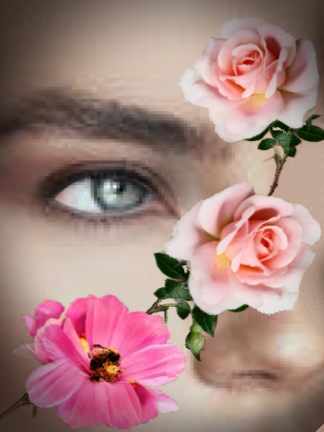
GIMP has similar features, so I thought I would use layer masking to create a colorized portrait.
Original photo: www.flickr.com/photos/47476117…
5 Layers used: Original B/W Photo plus Red, Cyan, Magenta, and Yellow channel output as individual layers.
• Red layer is masked to block out face and eye, but not lips.
• Magenta and Yellow layers masked to provide blended color for face and throat and block any color to the eye or eyeball.
• Cyan layer masked to only provide color for the iris of the eye.
• Original layer @ bottom of stack provides color for "white" of eyeball, showing through masks in all the other layers.
Hair is created by blending the Red and Magenta layers, erasing the face and hat, inverting the result to white lines and applying to the top (Red) layer without a mask.
All image processing done in GIMP.