HOME | DD
 deathride69 — Windows 7 Basic grey
Published: 2012-05-23 22:06:02 +0000 UTC; Views: 13086; Favourites: 9; Downloads: 1737
Redirect to original
Description
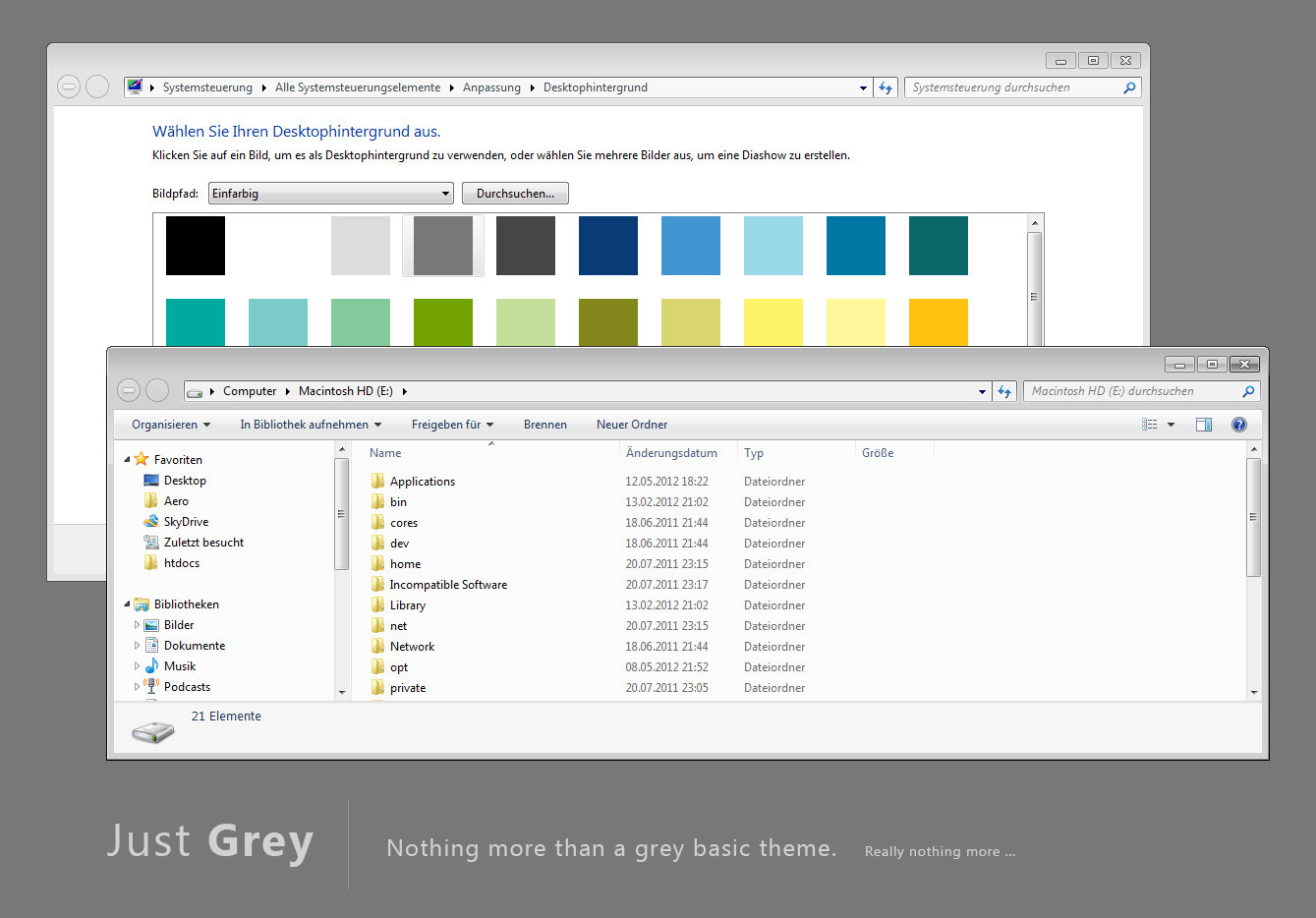
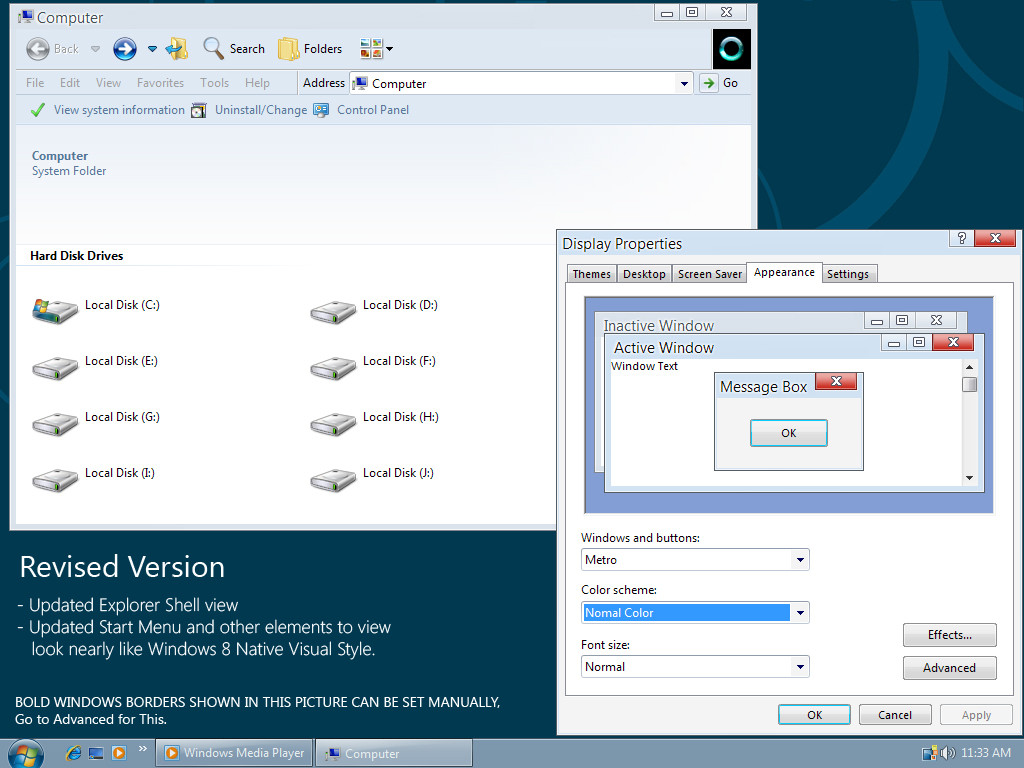
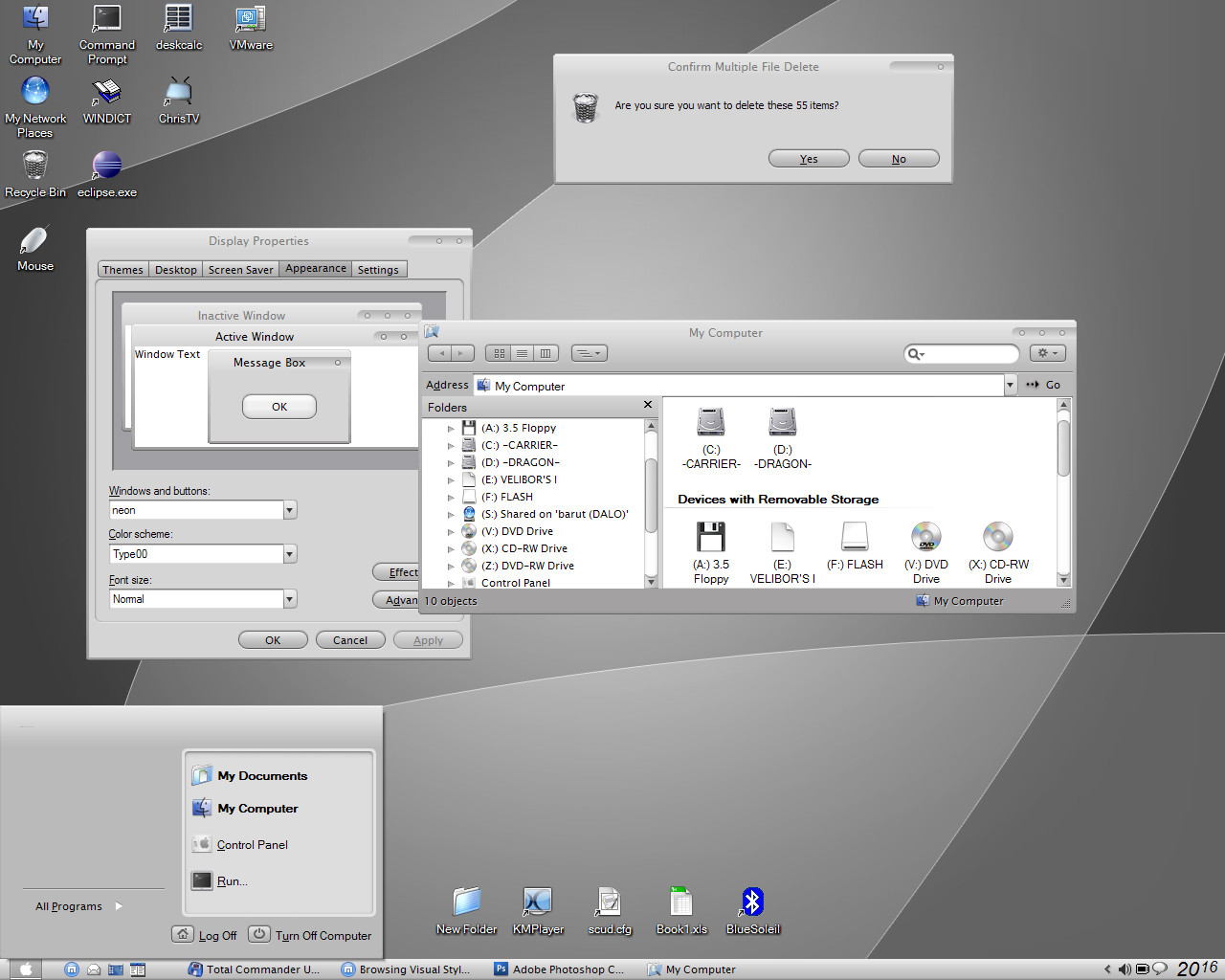
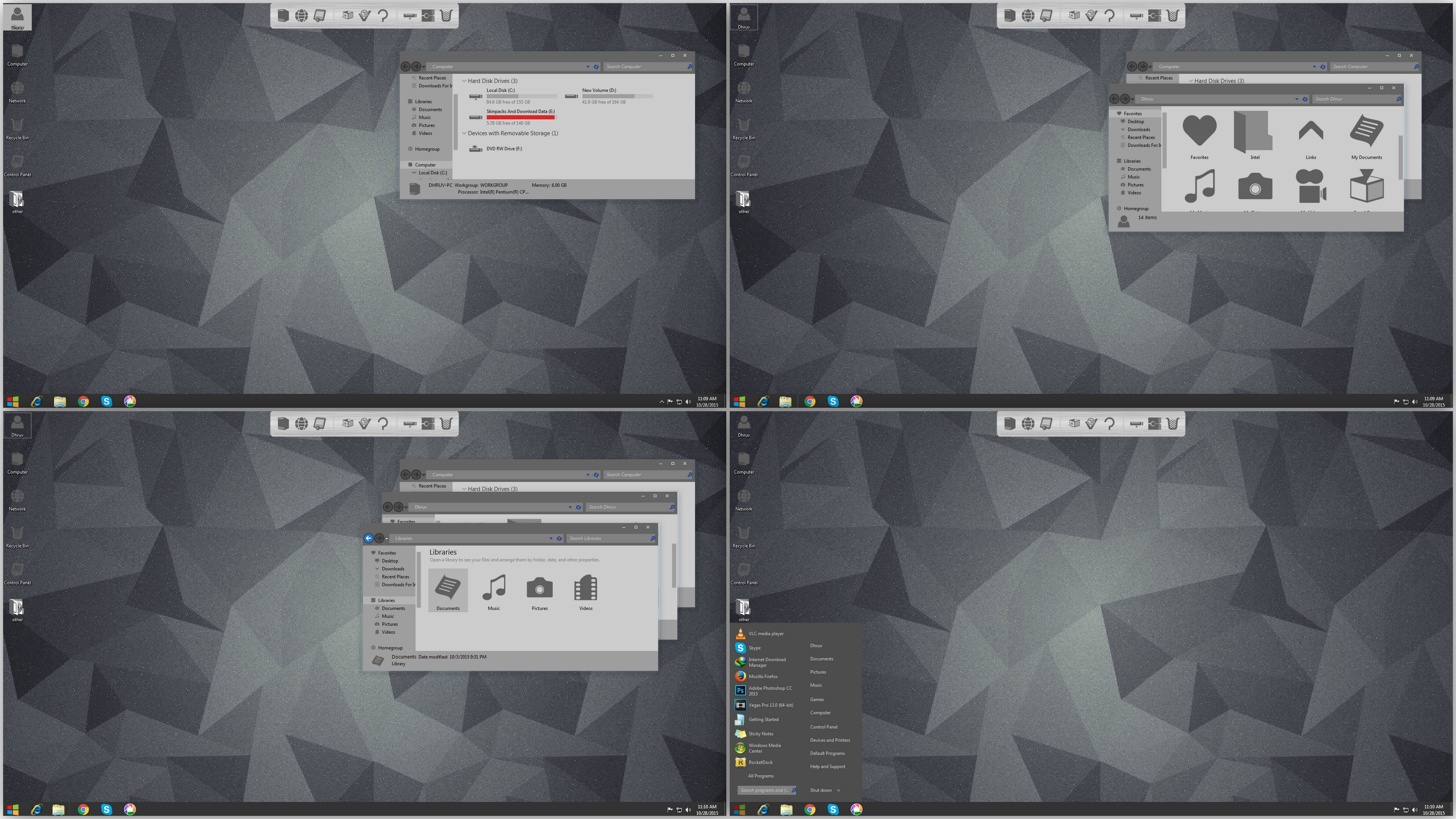
just made it for myself because i don't like the standard-baby-blue. but if anyone needs it ... it's just a grey (standard) windows "basic" theme, nothing more. i just greyscaled every of the 600 images i found in the "aero.msstyles" ...the "aero" version is grey, too, but has a small visual bug in the right-click-menue [if someone can tell me how to fix this ... tanks]).
how to install: replace the standard "aero.msstyles" with the new one (make a backup before!). log out- and in, right click desktop > properties and choose "Windows 7-Basic".
after that you can change the navigation-buttons, too, if you like (like in the preview) with the program "Windows 7 Navigation Buttons Customizer.exe" (google ...). the buttons are taken from another theme, i forgot the name.
the "aero.msstyles" is taken from my x64 version of windows 7 ultimate, i don't know if it works on a x84 system!
Related content












Comments: 15

I wish it works on my x32 notebook... I was looking for something like that!
I'll get back to u later. thanx for sharing!
👍: 0 ⏩: 0

please help! there are white squares on the taskbar and windows explorer
[link]
👍: 0 ⏩: 1

hmmm, sorry i don't have this problem, everything is fine. maybe a restart helps, or changing to another theme and back ...
👍: 0 ⏩: 0

@deathride69.
Tis easy to make this it's own basic theme. Do the following:
Navigate to %ResourceDir%\Ease of Access Themes
Make a copy of basic.theme
Rename it to anything really, I used Aero_Basic_Grey.theme
Open it in Notepad search for DisplayName & Path=%ResourceDir% and enter text after =
Put name of theme in DisplayName=Aero Basic Grey
Put Path=%ResourceDir%\Themes\Aero_Basic_Grey\Aero_Basic_Grey.msstyles
Save file
Navigate to %ResourceDir%\Themes
Copy Aero and rename to Aero_Basic_Grey
Navigate into that renamed folder & delete aero.msstyles
Copy your grey aero.msstyles into that folder and rename to Aero_Basic_Grey.msstyles
Done.
The theme will show up in your themes list and properly placed in Basic & High Contrast Themes
Cheers

👍: 0 ⏩: 0

I tell you about ExplorerFrame only, not about the whole theme. It seems to be stolen from another theme by one of local masters. These + and - on the left of adress bar.
👍: 0 ⏩: 1
You call them "navigation buttons".
👍: 0 ⏩: 1
yes, like i said i don't know the name of the theme where i have stolen it from ... if someone knows please tell me.
👍: 0 ⏩: 0
Pretty similar ExplorerFrame. Did you draw it by yourself?
👍: 0 ⏩: 1
no, as i said i took the standard aero theme and greyscaled it ... nothing more. i am no theme-maker, i only wanted a grey basic theme, no shadows, no transparencies ... and didn't found it anywhere.
👍: 0 ⏩: 0

though you should made as separate vs not aero replacement... (replacing aero theme is hard, sometimes even impossible because it's in use.)
👍: 0 ⏩: 1
i think you can not apply an own "basic" style with an own vs ... or am i wrong?
👍: 0 ⏩: 3

You can apply a Basic style, seen other guys do it. Think it's a modification of the .theme file, that's it. Look around, see who posted a style that has a Basic version as well.
👍: 0 ⏩: 0

