HOME | DD
 arsheesh — Eriond: Orbital Rotation
by-nc-sa
arsheesh — Eriond: Orbital Rotation
by-nc-sa

Published: 2011-08-21 17:49:27 +0000 UTC; Views: 2780; Favourites: 14; Downloads: 140
Redirect to original
Description
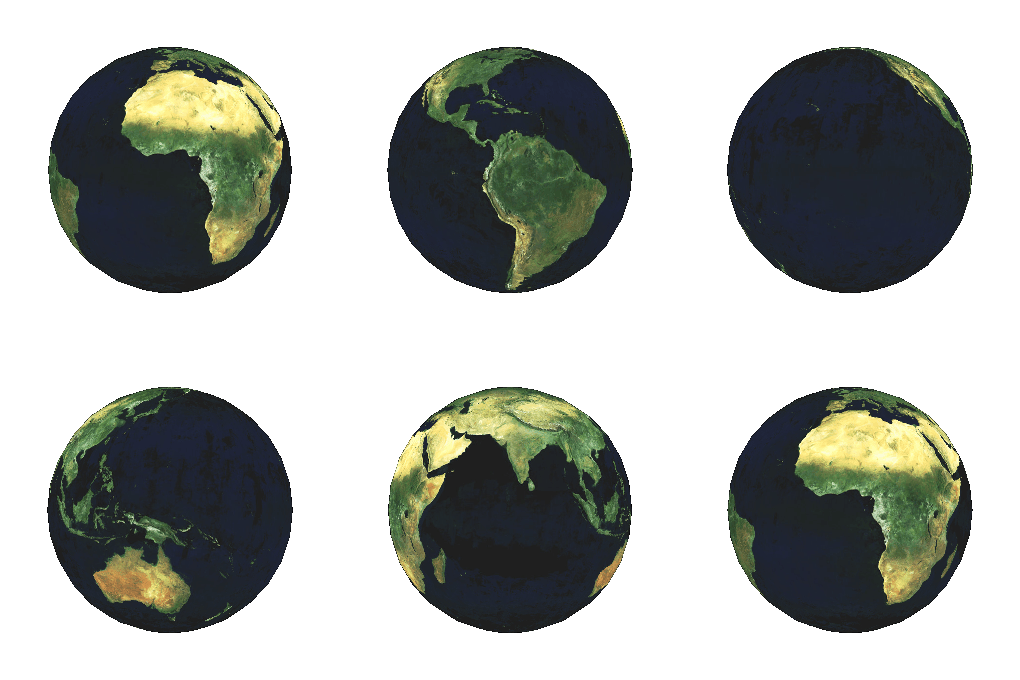
As a fun exercise, I decided to do an orbital view of the world map that I am currently working on (a link to that WIP can be found here: [link] ). This is a view of the rotation of the planet.The map was made using GIMP and Wilbur.
EDIT: I've recently created a little walk-through on how to turn a world map into a globe. If you are interested, you can find the link to this tutorial here: [link]
Cheers,
-Arsheesh
Related content








Comments: 12


You can also stick it on Google Earth as a layer overlay and spin it to your heart's content.

👍: 0 ⏩: 1

Huh, I had no idea you could do that. Well guess now I have another exercise to experiment with. Thanks for the tip A.
Cheers,
-Arsheesh
👍: 0 ⏩: 1
On my CG profile page, in the visitor messages section, I put a link to the thread where RobA shows how to do it...I use it a lot and I got tired of always searching for it.
👍: 0 ⏩: 1
I'll check it out. I messed with the overlay method earlier today and had some difficulty so it would be nice to see how Rob does it.
👍: 0 ⏩: 0

I agree, it looks great. You need to put them all together, throw in a few extra frames, and make them into an animation.
👍: 0 ⏩: 1
Hm, never worked with animation before, but that's an idea worth investigating.
Cheers,
-Arsheesh
👍: 0 ⏩: 1
In the GIMP, it isn't too difficult. What you would do is put every image above into its own layer in proper order (as you did), then save as a .gif and as an animation. GIMP will automatically show each layer in sequence thus giving the illusion of animation. You will likely need to increase the number of frames in order to make it look more smooth, but it could easily be done. The only downside is that its quality will go down (it is a gif after all). If you need to experiment, you can go under Filters-->Animation-->Spinning Globe to get a general idea of how it works. Fiddle around with it, but I do NOT recommend using that filter on whatever base map you have. Whatever you did there will probably be best and then manually make the gif.
If you need to see more of how a gif works, just pick some of the animated emoticons to the right of the reply box and save them to your computer. Open one in the GIMP and you can see how each layer works. Please note, there are different ways a gif handles layers. Sometimes, it is addative (meaning it just puts whatever layer is next on top of whatever was below). There are replacing layers which removes the previous layers and shows only the new one. You can also adjust the timing (simply by adjusting the amount of milliseconds [ms] in each layer AFTER you save it as an animated gif). You won't need to mess with that on this project, but for future projects it may be useful.
👍: 0 ⏩: 1
Hey thanks for the (very informative) reply Trivas, I think I'm going to give this a try!
Cheers,
-Arsheesh
👍: 0 ⏩: 0

Thumbs up from me.
Now you just need to do an animation of it!

👍: 0 ⏩: 0