HOME | DD
 YGKtech — Floating Hex
by-nc-sa
YGKtech — Floating Hex
by-nc-sa
Published: 2012-11-01 00:05:57 +0000 UTC; Views: 21040; Favourites: 13; Downloads: 1271
Redirect to original
Description
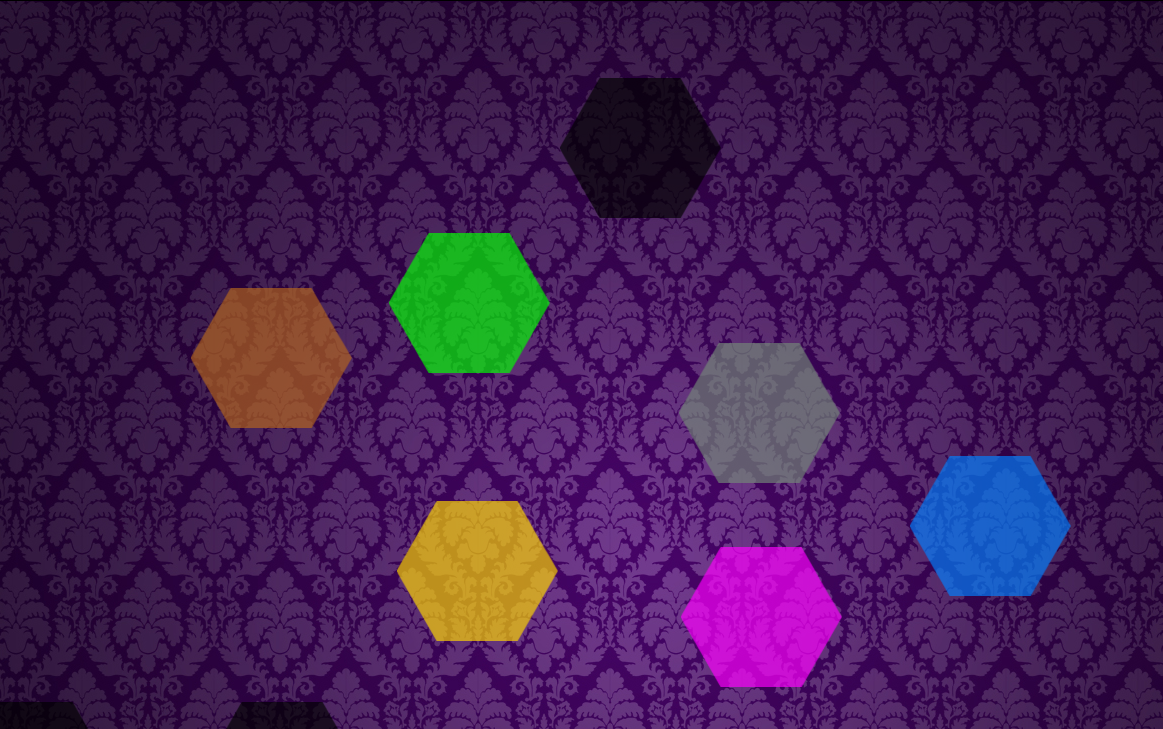
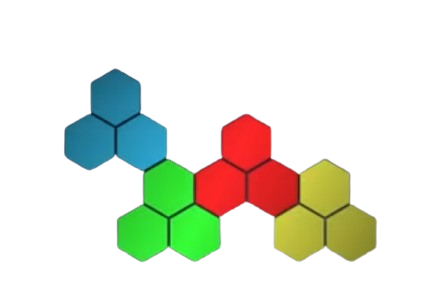
A quick skin someone suggested I make, I tossed it together in about 20 minutes using code blocks from Hexagonads 2.0The skin creates a single hexagon shaped button you can customize as you like, it has all the same features as a button in Hexagonads 2.0 (see the link above for setup instructions)
I won't go in to detail about the settings here & now, but ere are some key points:
1) the button won't do anything unless you remove some semi-colons from the [hexagon] section of the .ini file, i did this so you can drag the hexagon around while setting it up.
2) to make multiple hexagons on your screen, you will need to have multiple copies of the skin. open you skins folder, select the Floating hex folder and hit copy, the paste as many copies as you would like, refresh rainmeter, load them, and right-click > edit skin to begin configuring the skin.
As always, feel free to ask me any question about the skin, I'll do my best to give a helpful answer.
--------------------------------------------------------------------------------------------------------------------------
NOTE: there is an error in my original code for this.
I originally made this skin by cutting chunks out of my Hexagonads launcher skin, which has many different Path and Tip variables, while making this skin I forgot to adjust the names of the variables appropriately.
To make the skin work you will need to either rename the variables Path and Tip to Path1,1 and Tip1,1 or replace all instances of #Path1 ,1# and #Tip1 ,1# with #Path # and #Tip #
I don't want to repackage the skin to fix this right now, so I leave it up to you to fix it, sorry for the inconvenience.
Related content








Comments: 13

it seems that the text entered for the title of the pentagon only stays in one line, how can i make it appear in two or more lines
👍: 0 ⏩: 1

In rainmeter you can start a new line of text using this operator: #CRLF # (crlf stands for Carriage Return Line Feed - common terms in computer science that are actually carry overs from the typewriter days, when the machines "carriage" would return to it's starting position, then the machine would "feed" a new line)
So, if you wanted to have the text for a button be
Google
Chrome
Instead of
Google Chrome
You would specify the button text like this:
Path1,1 = C:\Program Files (x86)\Google\Chrome\Application\chrome.exe
Tip1,1 = Google #CRLF # Chrome
Hope that helps
👍: 0 ⏩: 0

Hi I wanted to assk how do i make it open an app ?
👍: 0 ⏩: 1
right click on the skin and then press "Edit skin"
Look for this section in the text file:
;;;;;;;;;;;;;;;;;;;;;;;;;;;;;;;;;;;;;;
;;;;;;;;;;;; Button Settings
;;;;;;;;;;;;;;;;;;;;;;;;;;;;;;;;;;;;;;
;;; add the directory path of you desired program/folder to the "Path#,# =" line
;;; and your desired title (if any) to the matching "Tip#,# =" line
Path =
Tip =
next to "Path =" you will need to place the file path of the application you want to open, for example:
Path = C:\Program Files (x86)\Google\Chrome\Application\chrome.exe
you may set Tip to anything you want, or leave it blank. This controls the text that will be displayed on the button.
Next, find the section marked with "[hexagon]" in the text file. you should see two lines of text that begin with a semicolon ";" delete the semicolon.
(NOTE: you cannot move the hexagon unless the semicolons are there, so if you ever want to move the button, you will need to open the file and put them back).
Finally, save the file, then right click on the skin and press "Refresh skin"
👍: 0 ⏩: 0

Hi~ Im making my theme. This html is very nice, but when I am finished making the pentagons I can't open the programs. I click them and they display the animation of me double clicking but nothing opens at all.
👍: 0 ⏩: 1
This most likely means you have not set the path variable correctly, or you have not enabled the mouse click actions by removing the semicolon's from the LeftMouseDownAction and LeftMouseUpAction lines (if you are not very familiar with rainmeter's syntax, the program ignores everything to the right of a semicolon)
In the [variables] section, under Button Settings, you will see an empty assignment for the variable Path, you need to add the absolute file path, in quotations in order for rainmeter to know what to do when you click the button
When you are done, it should look something like this:
Path = "C:\Program Files\Rainmeter\Rainmeter.exe"
At the very bottom of the [hexagon] section, you will see two lines starting with semicolons:
;LeftMouseDownAction = !Execute [...]
;LeftMouseUpAction = !Execute [...]
Simply remove the semicolons, and leave the rest of the line unchanged:
LeftMouseDownAction = !Execute [...]
LeftMouseUpAction = !Execute [...]
Once you remove the semicolons, you will not be able to drag the hexagon around your screen, so make sure you have it positioned where you want it first.
If the button still isn't working for you, send me a note with a full copy of your .ini file for the button and I will see what I can do.
👍: 0 ⏩: 0

Finally I figured out how to change colors, text and place them correctly. Wanted to use icons instead of text but I think the level of difficulty for me at this stage is too hard.
sweetpeafx.deviantart.com/art/…
👍: 0 ⏩: 1
Glad you were able to make use of it, and you've done a lovely job composing your desktop.
Some users have successfully added icons to the hexagons before, and the results are quite nice, but I've never gotten around to actually providing it as a built-in feature. It's at the top of my list for updates to my hexagon skins, but I have no idea when I'll get around to it. If you end up doing it, (or if anyone else reading this has done so), feel free to post a brief guide to how you did it, or a sample of your .ini file after the modifications, then others can benefit from your work.
👍: 0 ⏩: 0

Hey really awesome thank you! Is it possible to add an icon to this? :/
👍: 0 ⏩: 1
it is, you would need to add a image meter and play around with positioning it, add this code to get started:
[icon]
Meter = image
ImageName = (image file name here)
meterStyle = sText
this should let you put a image file in the middle of the hexagon, you will have to adjust some positioning rules to get it to look right though. (just add a line the the [icon] section, it will replace the rules it gets from the sText style automatically)
👍: 0 ⏩: 1
Thank you very much 
👍: 0 ⏩: 1
it will look for a file with the name you give it in the same folder as the skin's .ini file is, so the easiest way to do it is to put the image file in that folder (i think it's usually "C:\program files\rainmeter\skins\floating hex\" remeber to put quotation marks around it if there are spaces in the name of files or folders). You can also use relative paths, and absolute paths.
I'm glad to help, I just haven't done much work with rainmeter for a while so it takes me a bit to remember how to do things.
👍: 0 ⏩: 0
