HOME | DD
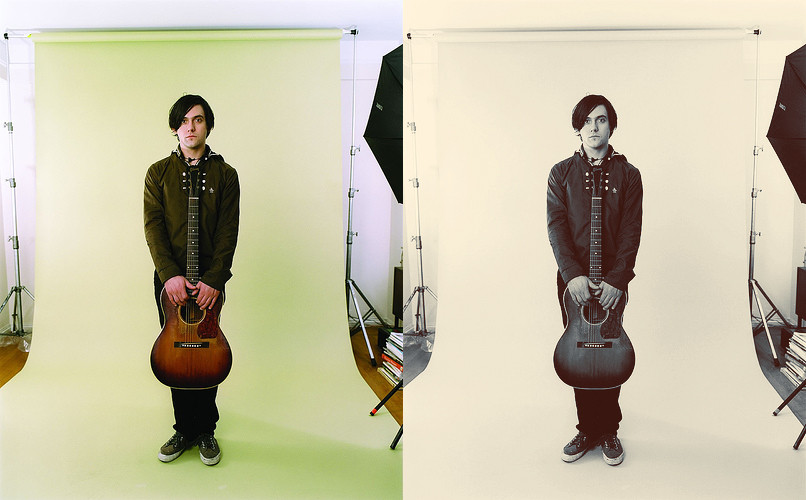
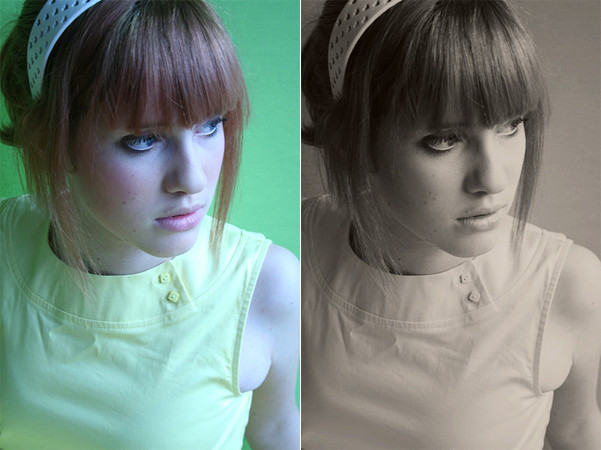
 rocketlaunch — tutorial: blue-pink

Published: 2007-09-29 16:58:52 +0000 UTC; Views: 8960; Favourites: 123; Downloads: 0
Redirect to original
Description
i will be using photoshop cs2 for this tutorial.1. go to layer > new adjustment layer > levels, select 'rgb' from the drop-down list and fill this in:
input: 16, 1.38, 255
output: 0, 255
select 'red' from the drop-down list and fill this in:
input: 10, 1.19, 255
output: 7, 255
now select 'green' from the drop-down list and fill this in:
input: 5, 0.90, 219
output: 48, 204
finally, select 'blue' from the drop-down list and fill this in:
input: 20, 1.24, 255
output: 74, 144
2. go to layer > merge visible.
3. duplicate your merged layer, and set it to soft light at 100%.
4. go to layer > new adjustment layer > hue/saturation and fill this in:
hue: -6
saturation: -15
lightness: -10
5. go to layer > new adjustment layer > selective colour, check 'relative', and fill this in:
neutrals: -4, -2, -7, -9
blacks: -14, +8, -14, +18
set it at 32% opacity.
6. duplicate your background layer again and drag it to the top. set it to soft light at 100%. duplicate this layer.
now merge the layers and you're done!
stock: ~catloverstock
Related content





Comments: 6

I love your tutorials. They are so easy to follow!
Thankyou!!!

👍: 0 ⏩: 0


